App Store exclusive · One-time purchase

Shadowrocket User Guide: Download, Setup & Connections

Shadowrocket is a paid client for iPhone and iPad. It imports users’ existing server details or subscriptions and handles connections through Global Routing and rule lists. The app is a one-time App Store purchase; check the store page for current system requirements.

Global Routing On Demand Shadowsocks VMess VLESS $2.99 one-time purchase
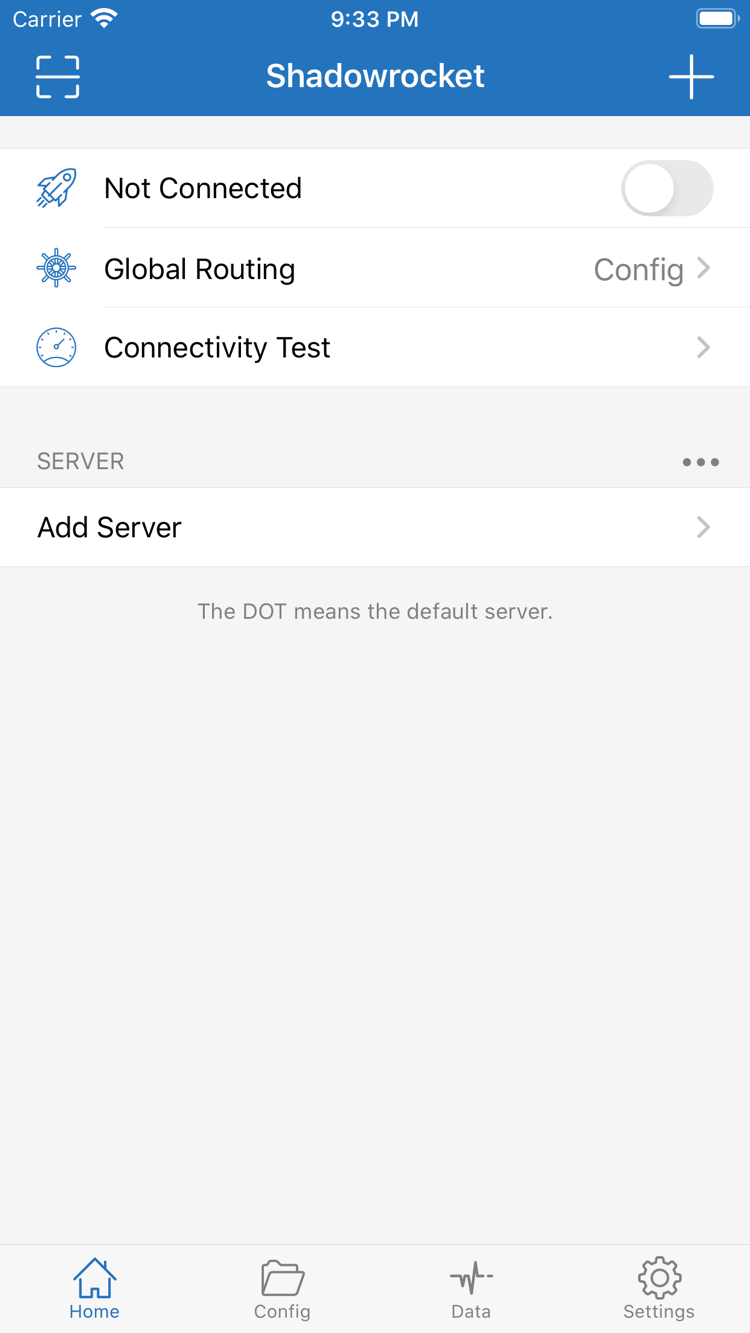
Shadowrocket Home: Not Connected, Global Routing, Add Server
Home: Not Connected, Global Routing, Add Server
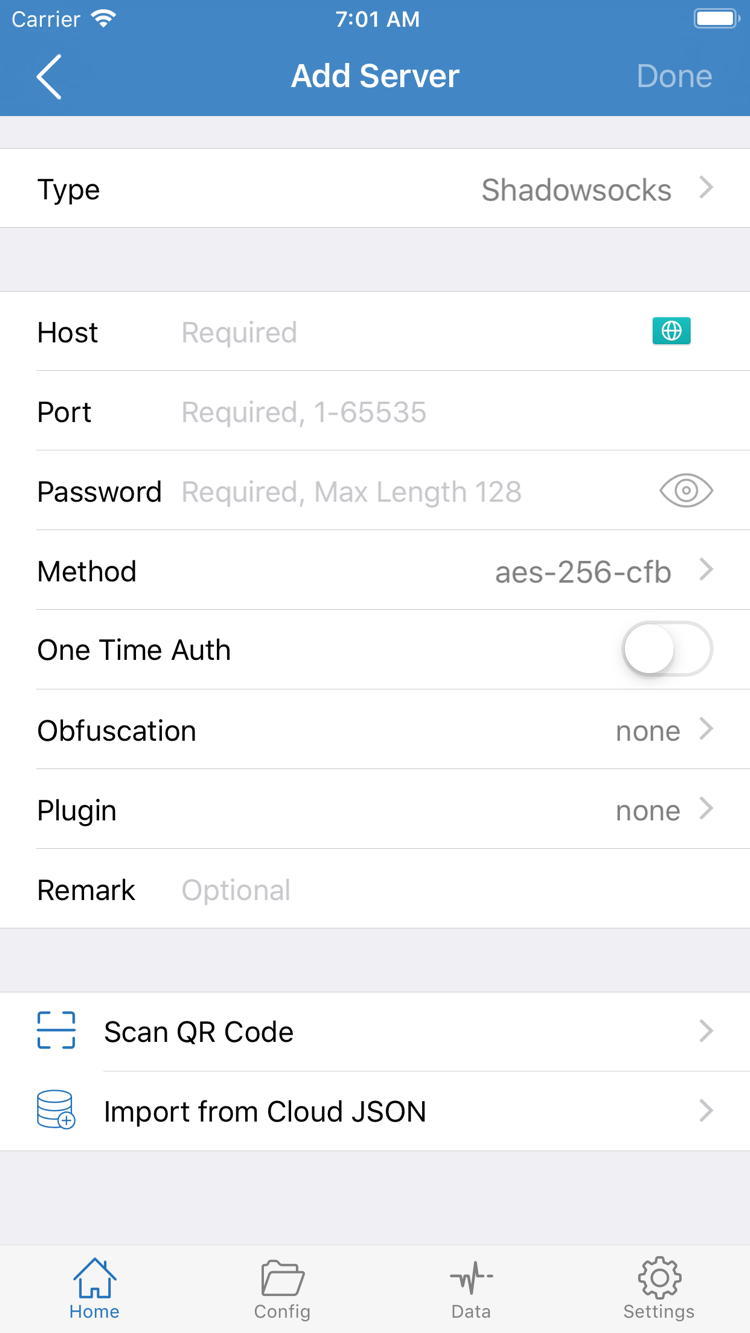
Shadowrocket Add Server: Type, Host, Port, Password
Add Server: Type, Host, Port, Password

From connection details to rule handling

The sections below follow the practical setup order for Shadowrocket. First confirm that your existing server details or subscription work, then choose a Global Routing mode, and finally configure rules, On Demand, Data, and sync options as needed. Switch tabs to see each feature’s interface path and limits.

01

Multiple protocols and Add Server

Shadowrocket supports connection details for Shadowsocks, VMess, VLESS, Trojan, HTTP, SOCKS5, WireGuard, Hysteria2, and more. To add a server manually, open Add Server from Home, choose the correct Type, then enter the Address, Port, Password, and other authentication fields from your existing details. Similar protocol names do not mean their fields are interchangeable. If a connection times out, first check the type, address, port, authentication details, and transport parameters instead of changing the rules.

If the details are stored as a QR code or Cloud JSON, choose Scan QR Code or Import from Cloud JSON as appropriate. Importing only writes the details to the client; verify server availability separately with Connectivity Test and an actual access test.

Add Server
Shadowsocks VMess VLESS Trojan WireGuard Hysteria2

iPhone and iPad setup

The App Store is the only way to obtain Shadowrocket. The store handles purchases, redownloads, and updates; check the App Store product page for current system requirements, device compatibility, and pricing.

iPhone

See the App Store purchase, first launch, system connection authorization, and redownload steps. Before configuring Shadowrocket, confirm the developer name and app ID shown on the store page.

Open the iPhone guide →

iPad

If you purchased it with the same Apple ID, find it in the App Store’s purchased items. The split-screen layout may differ from iPhone, but Home, Config, and Settings serve the same purposes.

Open the iPad guide →

Mac and Apple TV can also be checked on the same App Store product page; see the store page for current compatibility and system requirements.

View setup steps →
On the App Store Download Shadowrocket

From existing details to a verified connection

For a first setup, work through three stages. Verify the result after each step before moving on. This makes it easier to tell whether a problem comes from the import, server, mode, rules, or system connection status.

View the complete guide
  1. 01

    Add a server or Subscribe

    For a single server, open Add Server from Home, choose the Type that matches your details, and complete each field. For an existing subscription, enter the complete address in Subscribe and run an update. After importing, check that all fields are present, select a server, and run Connectivity Test. Use the test as an initial connectivity check, then confirm it with actual access.

  2. 02

    Choose Global Routing

    Use Config when traffic should follow rules and confirm that the intended Config file is enabled. Use Proxy briefly to test the current server, and Direct to compare against the local network. Config evaluates rules from top to bottom; specific domain rules should come before broad ones, and FINAL handles requests not matched above.

  3. 03

    Enable the connection and verify in layers

    Return to Home, turn on the connection switch, and complete the connection authorization requested by the system. Then check the system connection status, visit a known working destination, and see whether Data or the connection records show requests. If the switch will not stay on, check system authorization first. If it shows connected but access fails, compare the server, Global Routing, Config rules, and DNS settings in that order.

Client purchaseService plan

The purchase provides the Shadowrocket client itself. Users must arrange their own usable server details or subscription; this site does not provide, sell, or recommend nodes or subscriptions.

01

Check the developer and app ID

On the App Store product page, the developer should be shown as Shadow Launch Technology Limited. Also check that the app ID in the product page URL is 932747118. Verify the developer name, app ID, and official store icon together rather than relying only on the search-result title.

02

Understand the one-time purchase

The US storefront lists the price at about $2.99 as a one-time purchase. Other storefronts display local currencies; the final price is the amount shown on the App Store before payment. The purchase grants use of the client and does not include servers, subscriptions, or network services. Before buying, confirm that the current Apple ID storefront can display the product.

03

Purchases and redownloads

After purchasing with the same Apple ID, find and redownload Shadowrocket from the App Store’s purchased items on iPhone or iPad. When changing devices or reinstalling, first verify the signed-in account and storefront, then check the purchase history. Family Sharing eligibility and availability on other devices depend on the current App Store listing.

04

The store handles installation and updates

Shadowrocket is a closed-source commercial app; the App Store handles acquisition, installation, redownloads, and updates. The store page shows current compatibility, system requirements, and update notes. These details may change as the product evolves, so this guide does not record a fixed version. If settings behave differently after an update, first check Config, Settings, and system connection permissions.

Developer: Shadow Launch Technology Limited App ID: 932747118 One-time purchase App Store exclusive

Confirm these four points before your first setup

Most first-use issues can be located quickly by checking the source, details, mode, and system status. The answers below establish a troubleshooting order; see the user guide and troubleshooting manual for complete steps and interface paths.

How do I identify the right app after searching the App Store?

Open the product details page and verify the developer Shadow Launch Technology Limited, app ID 932747118, and official icon in that order. Do not rely only on the name or use the search-result position as proof.

View the authenticity checklist →

Why can’t I connect after importing?

A successful import only means the details were written to the list. You still need to select a specific server, check the protocol fields, run Connectivity Test, choose an appropriate Global Routing mode, and complete system connection authorization.

View the connection guide →

How should I choose Config, Proxy, or Direct?

Use Config for everyday rule-based routing, Proxy briefly to test the current server, and Direct to check the local network or rule out the server. Restore the mode required for normal use after the comparison.

View the settings guide →

Where should I start when access fails after connecting?

Confirm the system connection status first, then check the server, Global Routing, matched rules, DNS, and local network in that order. Change one condition at a time and record the results before and after each change to avoid changing multiple variables at once.

Open the troubleshooting manual →